How to Make the Burning Bridges AI Video: 3 Ways, Step by Step
Three ways to make the Burning Bridges AI video: the free CapCut template on your phone, a general AI video app, or one photo in a browser. Steps for each.
 Burning Bridges AI
The short answer. There are three ways to make the Burning Bridges AI video. The free one is the CapCut template: one photo on your phone, a 10.6-second clip. The one with the most control is a general AI video app, where you bring the clip of the scene and write a prompt. The one with the least work is a site built for this scene: on Burning Bridges AI you upload one photo and about five minutes later you download a 15-second 16:9 MP4, paid once, with no prompt, no app and no subscription. Pick the template if 10.6 seconds on a phone is enough, and a one-scene site if you want the longer cut or you are on a computer.
Updated October 13, 2026.
The steps for each of the three are below, in the order most people try them, followed by what each length of the clip covers, how to post it and what makes a photo work.
What the video is
The trend takes the chandelier party scene from Drake's "Burning Bridges" music video and replaces the lead with someone else. The official video went up on YouTube on May 15, 2026. From about 2:37 it is a single handheld shot in a dark private room: one lead holding a metal cup, four to six people moving behind him, a low wide-angle camera and no cuts.
In the AI versions the lead becomes you, a friend or a character, usually outfit and all. The moves, the camera and the room stay the same. The versions people post run from 10.6 seconds to about 29 seconds, and every one of them starts from the same moment of the scene.
Way 1: the free CapCut template
This is how most of the clips on TikTok were made.
- Open TikTok on your phone and find a Burning Bridges AI video that shows a CapCut template link under it.
- Tap the link. It opens the template in CapCut.
- Pick one photo of a face and let it render.
- Export, then post it with the song from the sound library.
What you get is the short cut: 10.6 seconds. It costs nothing. The limits are that it lives in the phone apps, the length is fixed, and you get whatever the template was built to do.
Way 2: a general AI video app
Tutorials for this route use apps that accept a reference video together with a photo of a person. The steps are roughly the same in each:
- Get the clip of the party scene and trim it to the part you want.
- Upload it as the motion reference.
- Upload a clear photo of the person who should replace the lead.
- Write a prompt that says to keep the motion and the camera and replace the person.
- Render, check the result, and render again if the face or the cup went wrong.
This route gives you the most control over length and style. It also takes the most work, and it does not always start: some video models refuse a reference video that shows real people. If the upload is refused, the answer is to use another route, not to alter the clip to get past the check.
Way 3: one photo in a browser
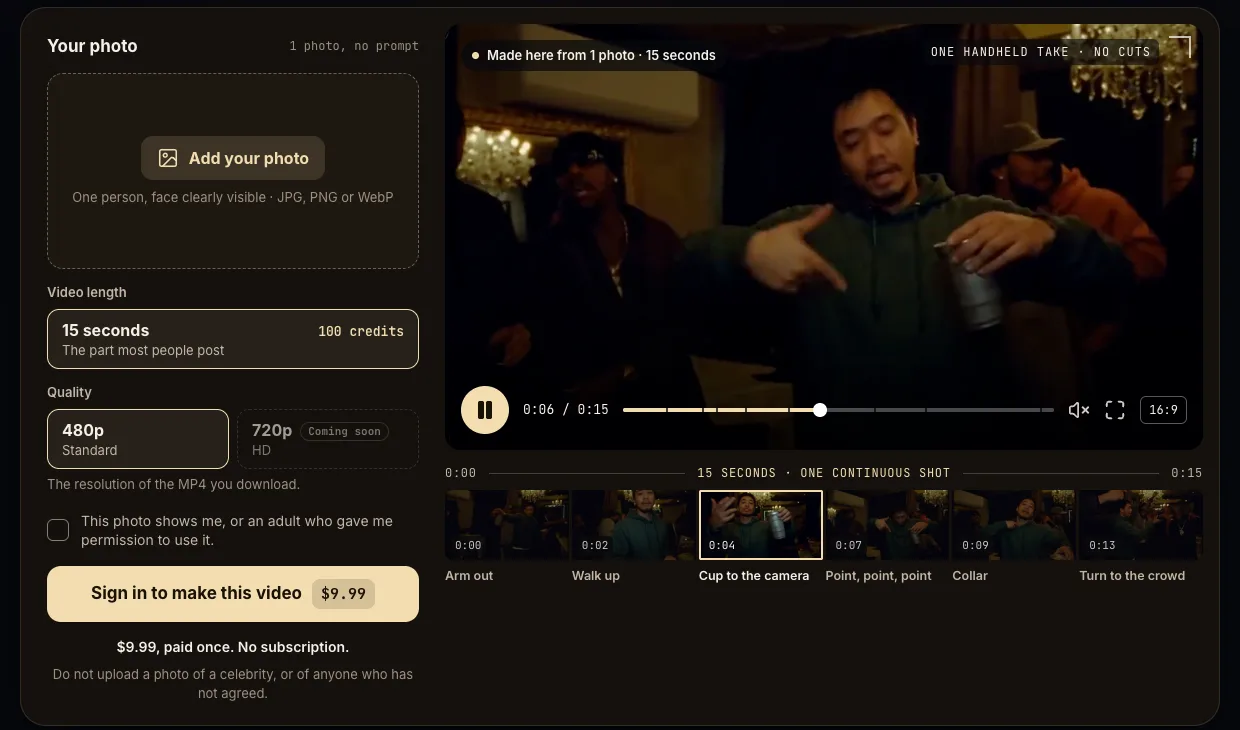
A site made for this one scene skips the reference clip and the prompt. On Burning Bridges AI the steps are:
- Upload one photo with the face clearly visible. It has to be you, or an adult who agreed to it.
- Confirm and pay once. There is no subscription.
- Wait about five minutes, then download a 15-second 16:9 MP4.
The file is silent on purpose. You add the song yourself when you post.
What each length covers
All the versions start at the same moment of the scene and differ only in where they stop. We timed the scene frame by frame:
- 0 to about 10 seconds: the arm goes out, the lead walks up to the camera, holds the cup to the lens, steps back, points three times and grabs his collar. This is where the 10.6-second template ends.
- 10 to 15 seconds: the turn to the crowd. A 15-second cut includes it.
- After 15 seconds: a wave and a second walk. Only the versions that run 20 to 29 seconds reach these.
If the move you want is the collar grab, the template already has it. If you want the turn to the crowd, you need at least the 15-second cut.
Can you make it for free?
Yes, with the CapCut template. It is the only route we found that costs nothing and still gives you the whole clip.
General AI video apps charge credits per render, and some give a new account a few credits to start with. That can be enough for one attempt, but this scene often takes more than one.
Sites built for the scene are paid, ours included. Rendering 15 seconds of video costs real money each time, so there is no free tier and no free trial.
Which one to use
- You are on your phone and 10.6 seconds is enough: use the CapCut template. It is free and it is the version most people have seen.
- You want a different length, a different room or a character instead of a person: a general AI video app gives you that control, if it accepts the clip.
- You are on a computer, or you want the 15-second cut without a prompt: use a site built for the scene.
Posting it
The clip is 16:9, the shape of the music video. On TikTok and Reels people place it inside a vertical frame, often stacked twice, or with the original above and their version below.
For the sound, search "Burning Bridges" in the TikTok or Instagram sound library and start it where your clip starts.
Use it responsibly
- Use your own photo, or the photo of an adult who agreed to be in the video.
- Do not use a celebrity, and do not make a video meant to pass as real footage of someone.
- Say it is AI when you post. Most platforms have a label for that.
- The scene comes from a music video that belongs to the artist and his label. A fan clip of the trend is not an official release, and no site that makes these is affiliated with them.
Photo tips
- One person, face to the camera, evenly lit.
- Head and shoulders or waist-up both work.
- Group photos, sunglasses, masks and heavy filters tend to come out wrong.
- Use a photo of yourself, or of an adult who said yes. Do not use photos of celebrities.